How to Go Live on Instagram: Start, Schedule and Share
How to go live on Instagram: who qualifies, the steps in the app, scheduling a live up to 90 days ahead and what to do with the replay once the broadcast ends.
You can go live on Instagram in a handful of taps, as long as your account qualifies. Here's who's allowed, which buttons to press, how to schedule a live and what happens to the video afterwards. Everything below comes from the Instagram Help Center and Meta's own guides, checked in September 2026. If a label differs slightly in your app version, pick the closest match.
Who can go live on Instagram
If your account falls short on any of these points, the steps below won't work.
- A public account with 1,000 followers or more. Instagram only lets public accounts with at least 1,000 followers start a live broadcast. Private accounts can't, whatever their size.
- New accounts may have to wait. Newly created accounts may not be able to go live or co-broadcast yet.
- Past removals count. If something you posted was removed for going against the Community Standards, you may not be able to go live.
- Teen Accounts start with Live switched off. Teens under 16 need a parent's or guardian's permission to turn it on; teens aged 16 or 17 can turn it on themselves.
- Phone only. Going live is a feature of the Instagram app for Android and iPhone. The Help Center says it isn't available on computers.
How to go live on Instagram, step by step
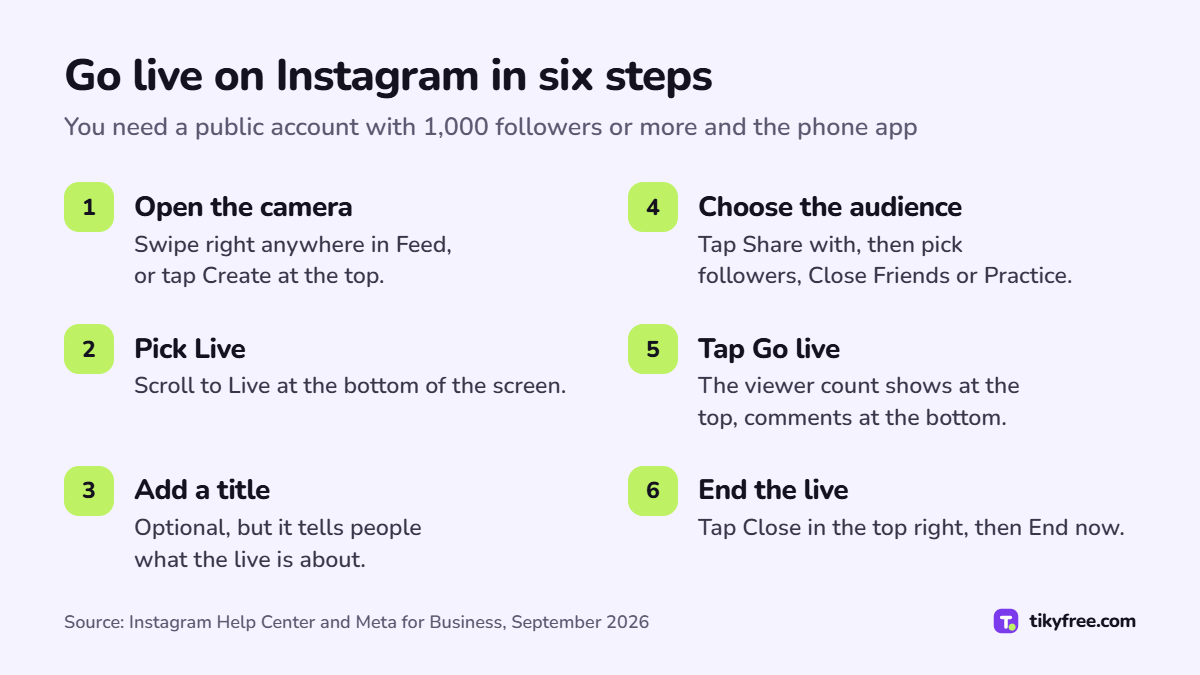
- Swipe right anywhere in Feed, or tap Create at the top, then scroll to Live at the bottom.
- Add a title if you like. On iPhone, tap Add a title, type it and tap Done. On Android, tap Title on the left, type it and tap Add title.
- Pick your audience in the Share with menu: all your followers or just your Close Friends list. Want a dry run? Choose Practice, which looks like the real thing but stays hidden from your followers.
- Tap Go live. The viewer count sits at the top and comments appear at the bottom.
- Done talking? Tap Close in the top right, then End now to confirm.
Once you're on air, Instagram notifies your followers, or your Close Friends if you chose that list, so they can join, watch and comment.
Comments, guests and join requests
You stay in charge while you're live:
- Comments: to turn them off, tap Options at the bottom, then Turn off commenting. To highlight a good question, tap it and choose Pin comment.
- Guests: Live Rooms let you bring in up to three guests, but each one has to follow you first. Tap the add people icon, pick followers and tap Invite. Anyone who accepts appears in your live room; tap the X on their video frame to remove them.
- Requests: viewers can ask to join by tapping Send request, and you'll see who's asking under the requests icon. Rather not get any? Tap Options, then Turn off requests to go live.
How to schedule an Instagram live
You can schedule a live anywhere from 1 hour to 90 days ahead.
- Tap Create at the top or swipe right anywhere in Feed.
- Tap Live at the bottom, then Schedule on the left.
- Enter a title, pick a start time and tap Done.
- Tap Schedule live video. To spread the word, tap Share and pick where it goes.
Your next scheduled live appears on your profile, below your profile picture. Posts and stories you share about it carry the title, the start time and an option for people to set a reminder. You'll get reminders yourself 24 hours and 15 minutes before the time you picked.
Change of plan? Go back through Create, Live and Schedule and tap the scheduled video. Edit the title or start time and tap Done, or tap Cancel live video to drop it. You can change the start time up to 45 minutes before the live begins.
After the live: replay, download or archive
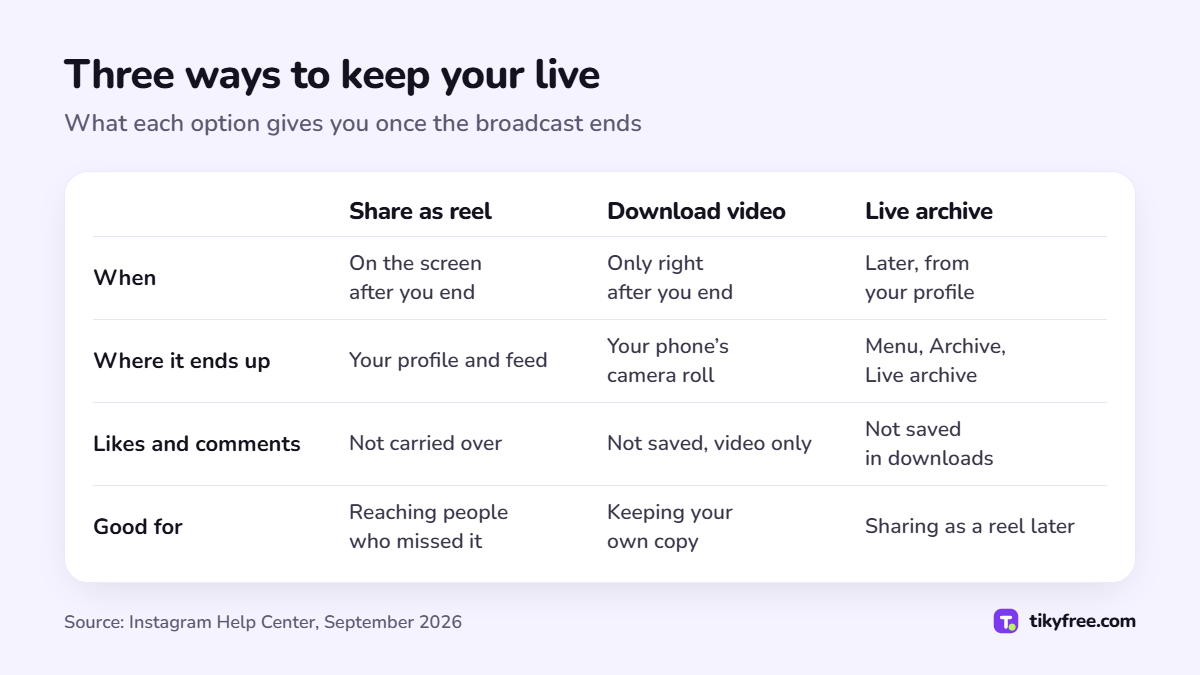
There are three ways to keep the video:
- Share as reel. Tap Share as reel on the screen that appears when the broadcast ends. Add a caption or tag people, then tap Share. The replay leaves out the likes and comments from the live, and its viewer count starts again once it's shared. You'll find it under Reels, below your bio.
- Download video. Tap Download video to save it to your phone's camera roll. The option is only there straight after the live ends, and only you can see it. Just the video is saved, not the comments, likes or viewers.
- Live archive. Live videos you share are saved to your Live archive: open your profile, tap Menu, then Archive, tap Stories archive at the top and switch to Live archive. From there, pick a broadcast and tap Share to post it as a reel. The Help Center doesn't say how long videos stay there, so download anything you want to keep.
Don't want an archive? Tap Create and Live, then open Settings, tap Live and turn off Save Live to Archive. From then on, live videos you share are deleted instead of archived. Instagram also says archived live videos you've shared publicly are used to improve AI at Meta unless you delete them or make your account private.
Getting people to turn up
No one can promise a crowd, but these habits help followers find your live:
- Schedule it. A scheduled live sits on your profile and lets people set a reminder in advance.
- Announce it in a story. Share the scheduled live to your story so the reminder option is one tap away. If that story needs a small starting push, our free Instagram story views service adds views to the stories currently up on your profile.
- Share the replay. A reel gives everyone who missed the live a second chance. Once it's posted, free Instagram reels views can get its counter moving.
An honest note: TikyFree's free boosts are small packages you can request again after a waiting period. They move the view count on a story or reel, not the audience of the live itself, and Instagram decides who sees your content. Counts from any outside service can also drop later, so treat them as a nudge, not a strategy. All our free Instagram boosts are listed on the Instagram services page.
Try it free
Frequently asked questions
Why is there no Live option on my Instagram?
Check the requirements first. Instagram only lets public accounts with 1,000 followers or more start a live broadcast. Newly created accounts may not be able to go live yet, and neither may accounts that have had posts removed for going against the Community Standards.
Can I go live on Instagram from my laptop?
The Help Center article on starting a live broadcast says the feature isn't available on computers. Use the Instagram app on an Android phone or an iPhone.
How many guests can join an Instagram live?
Up to three, using Live Rooms. Each guest has to follow you before you can invite them.
Does the replay keep the likes and comments from my live?
No. A replay shared as a reel doesn't include the likes or comments from the original live, and downloading it saves only the video, not the comments, likes or viewers.
How far ahead can I schedule an Instagram live?
Anywhere from 1 hour to 90 days in advance. You can still change the start time up to 45 minutes before the broadcast is due to begin.
Sources
- help.instagram.com/272122157758915
- help.instagram.com/292478487812558
- help.instagram.com/205039954953836
- help.instagram.com/126662934757177
- help.instagram.com/562982737951475
- help.instagram.com/1253487614735433
- help.instagram.com/1248831848848755
- help.instagram.com/813486081708433
- help.instagram.com/100925250516299
- about.instagram.com/blog/tips-and-tricks/instagram-live-tips-tricks
- facebook.com/business/learn/lessons/interact-with-audience-instagram-live